Am I Under Attack
Am I Under Attack? detects concentrated attack activity across your Security Engines and groups it into Attack Surges. When a surge is detected, the CrowdSec Console notifies your team and provides a dashboard for reviewing its scope, sources, behaviors, and contributing alerts.
The dashboard is available to Premium organizations. Organization Admins and Owners can enable or disable attack alerting.
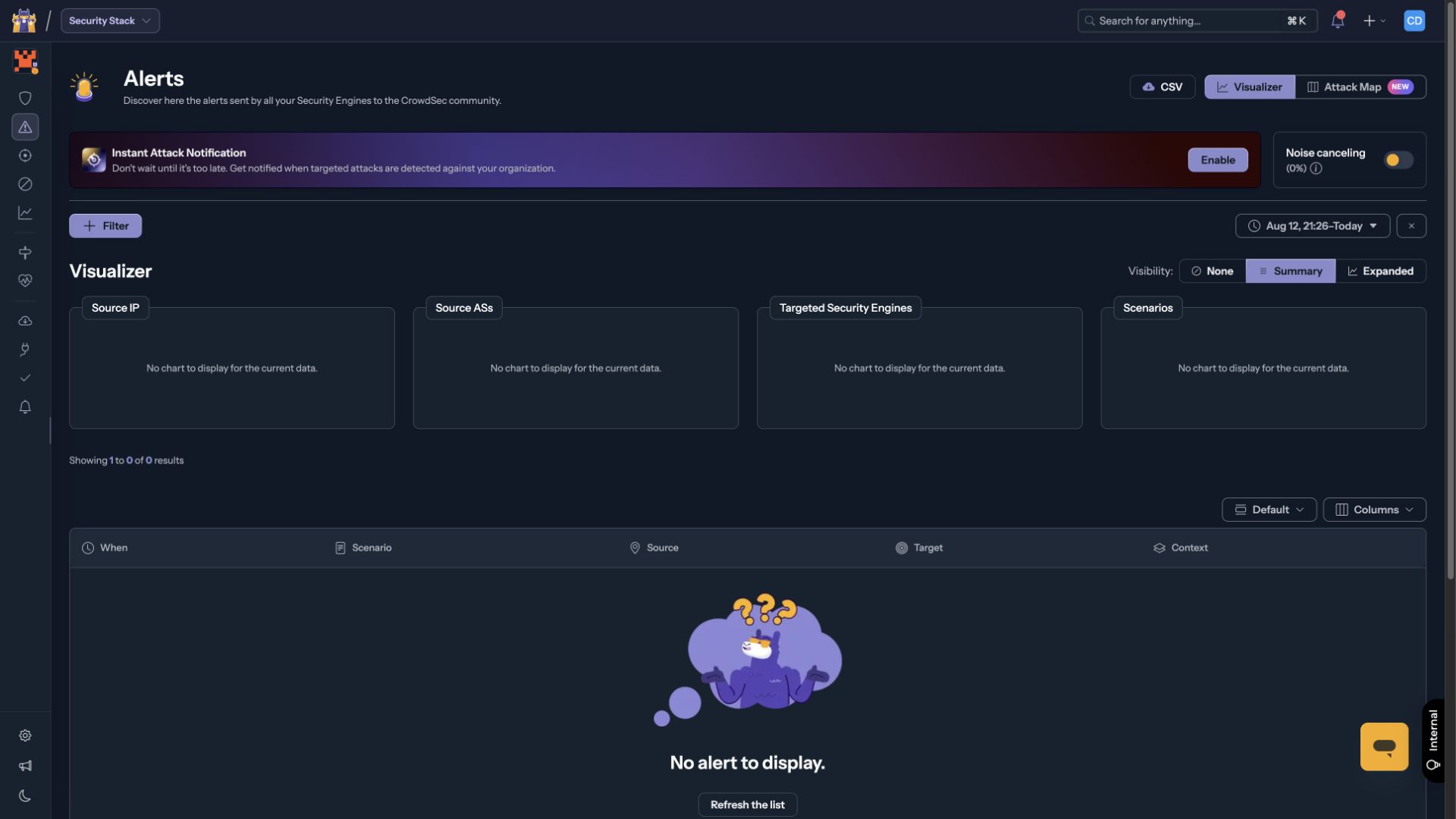
Enable attack notifications
- In the CrowdSec Console, open Alerts.
- Find the Instant Attack Notification card.
- Select Enable.
The button changes to Enabled when attack alerting is active for the organization.
Receive an attack notification
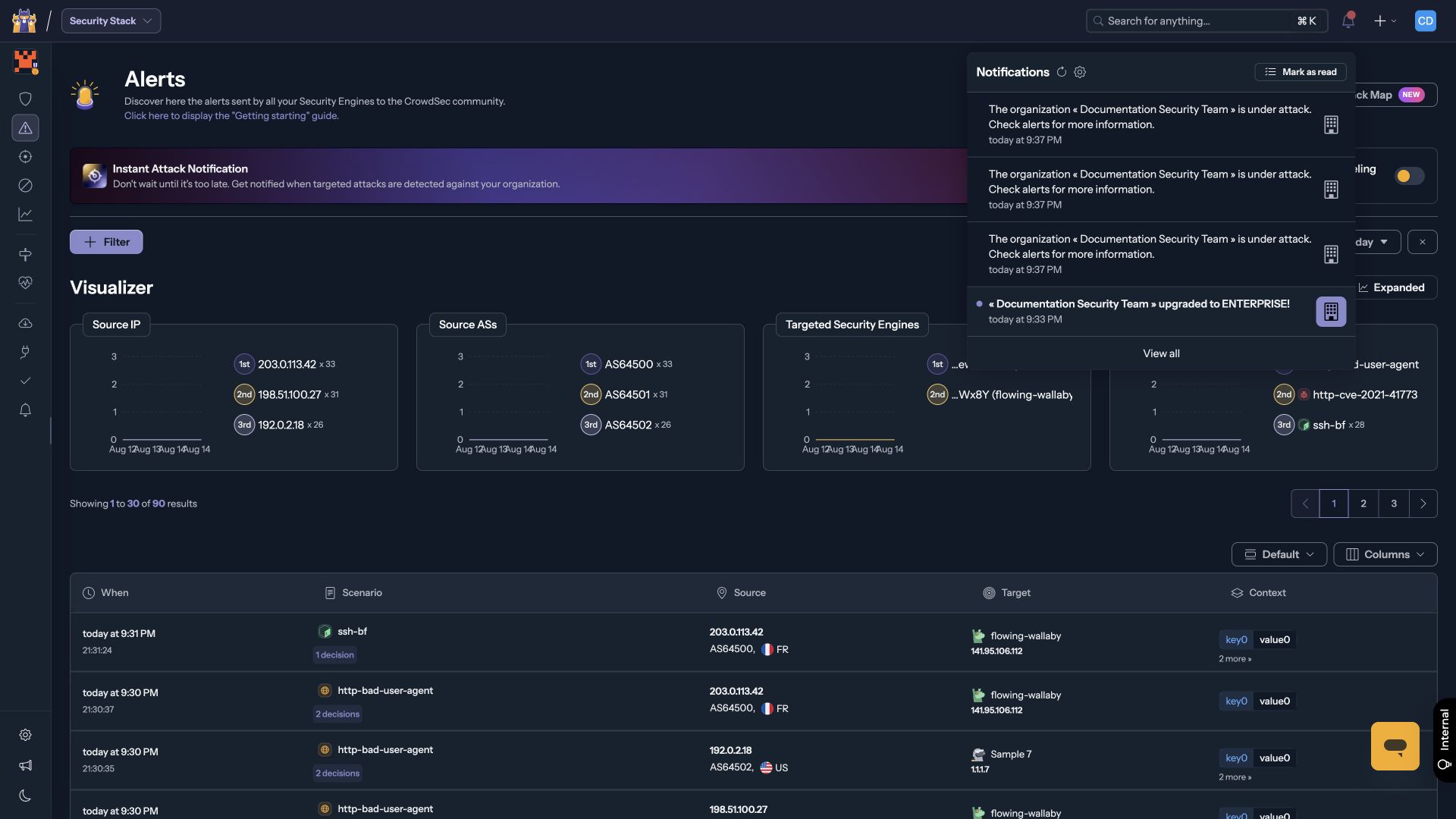
When CrowdSec detects an Attack Surge, the Console adds an in-app notification for the affected organization. Open the notification center to review the alert, or follow the attack notification to open the Attack Surges dashboard.
Review the Attack Surges dashboard
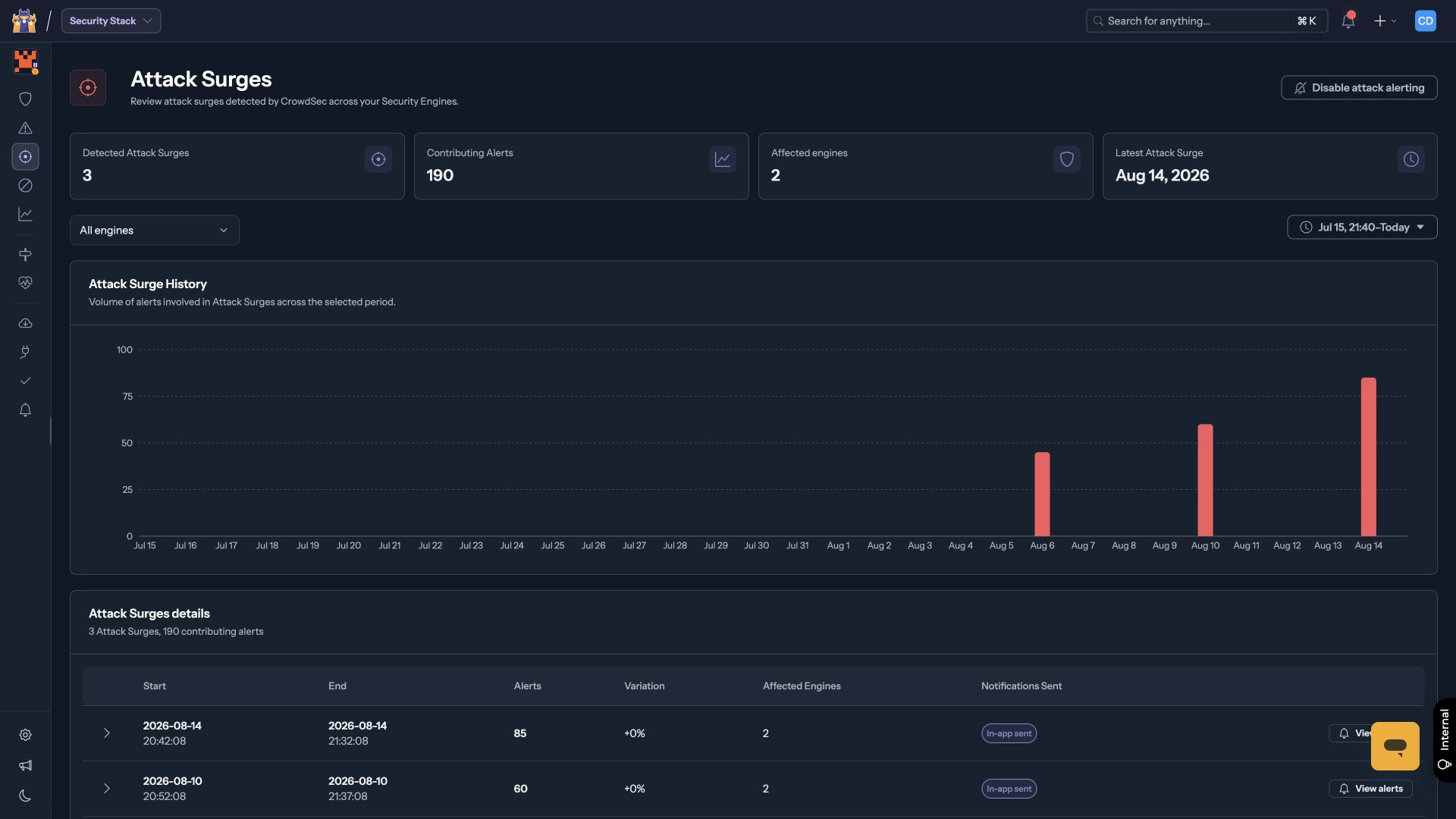
Open Attack Surges from the Security Stack navigation. The dashboard provides:
- Detected Attack Surges: Number of surges in the selected period.
- Contributing Alerts: Total alerts grouped into those surges.
- Affected engines: Number of Security Engines involved.
- Latest Attack Surge: Date of the most recent surge.
- Attack Surge History: Alert volume for each surge over time.
- Attack Surges details: Start and end times, alert count, variation, affected engines, notification status, and alert drill-downs.
Use the Security Engine and date filters to narrow the dashboard to the infrastructure and period you want to investigate.
Inspect an Attack Surge
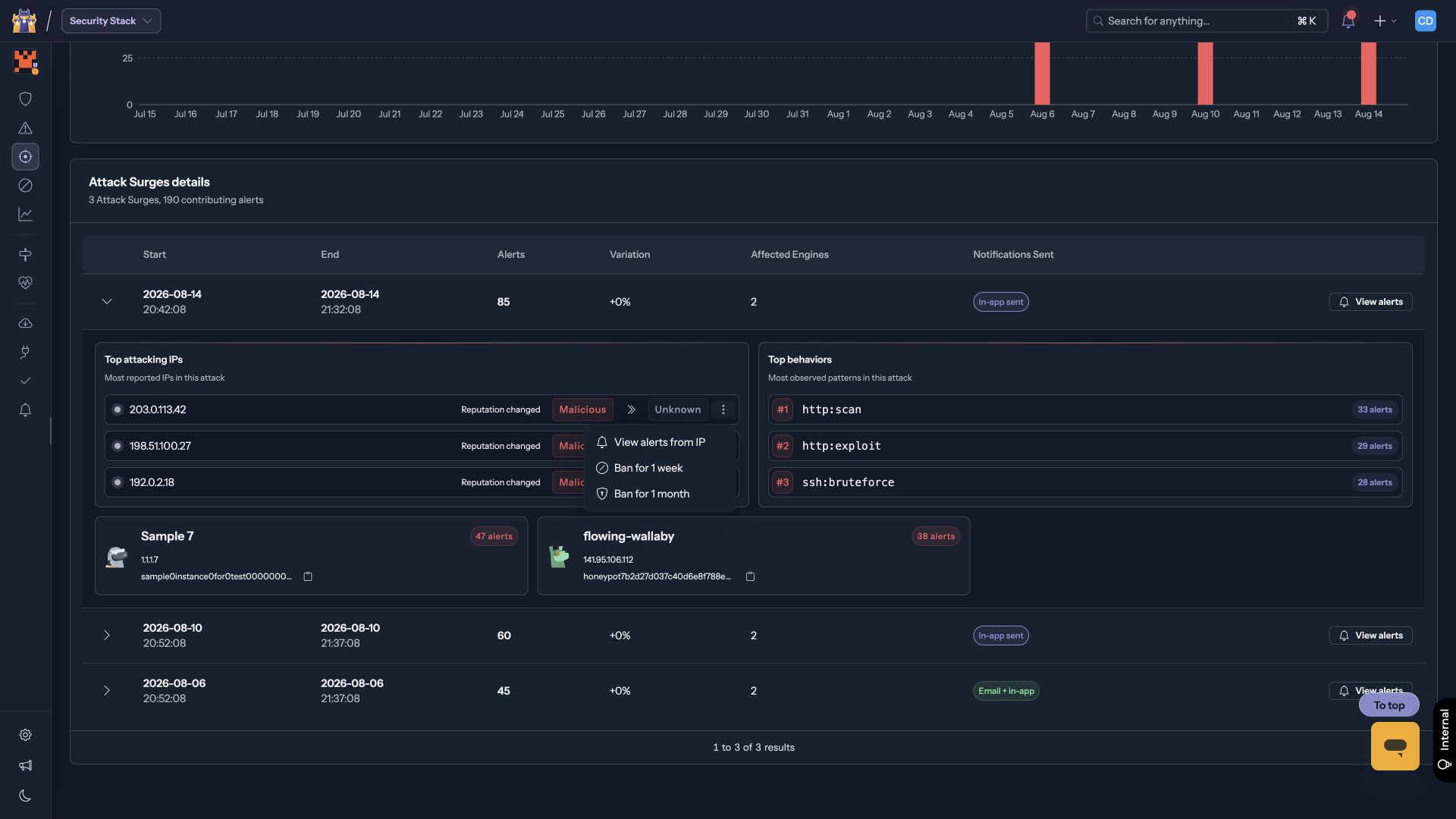
Select the expand control next to an Attack Surge to inspect:
- Top attacking IPs, including the reputation CrowdSec observed during the surge.
- Top behaviors and their contributing alert counts.
- Affected Security Engines and the alert count attributed to each engine.
For an attacking IP, open the actions menu to view its alerts. Organization Editors, Admins, and Owners can also create a one-week or one-month ban decision from this menu.
Drill down into contributing alerts
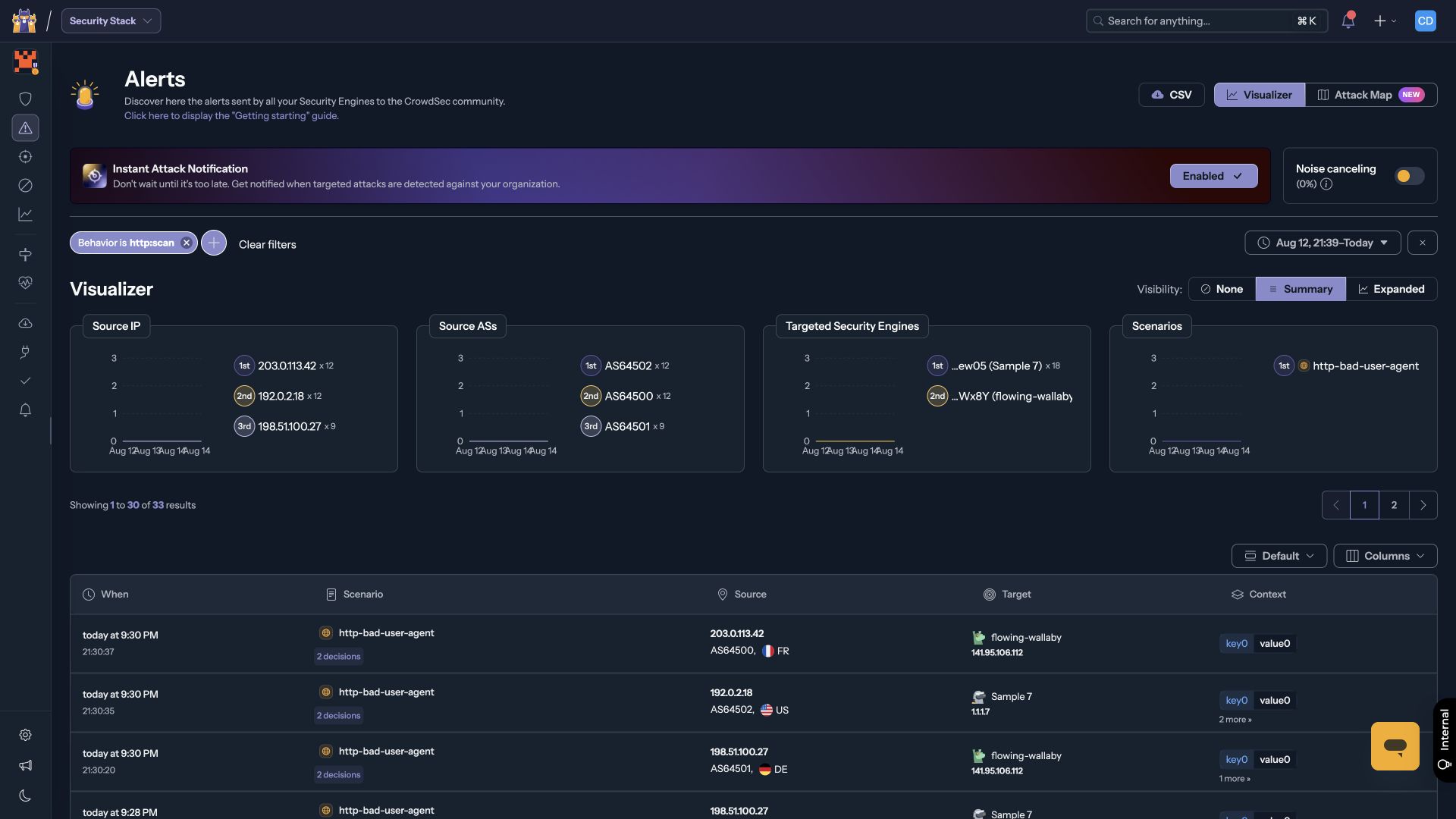
Use View alerts on an Attack Surge to open the Alerts page with the surge period and affected Security Engines preselected. You can also select an attacking IP, behavior, or Security Engine from the expanded details to investigate that specific facet.
The applied filters remain visible above the Alerts visualizer and table. In the following example, the http:scan behavior contains 33 contributing alerts.
Disable attack notifications
To stop receiving Attack Surge notifications:
- Open Attack Surges.
- Select Disable attack alerting.
- Confirm the action.